Design Mode & Cardholder Templates
You can use Cardholder Templates and Design Mode to automatically assign the same access group/groups to all block enrolled cards, to assign them with the save company contact information, set certain Advanced cardholders settings or various other settings, which can potentially save a lot of administration time.
Creating Default Settings for Block Enrolled Cards
- From Home >> Cardholders, open any existing cardholder record.
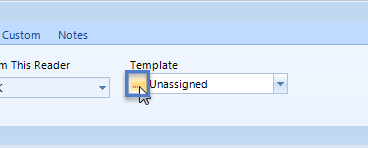
- On the General page click the edit icon from the Templates selection.
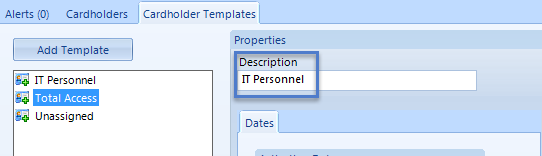
- Click Add Template and change the name of the new default template. Then save.
- Close the cardholder templates page to return to the cardholder record.
- Select the newly created template from the Templates drop-down list.
- Click the Design Mode icon
 (the toolbar should state Design Mode).

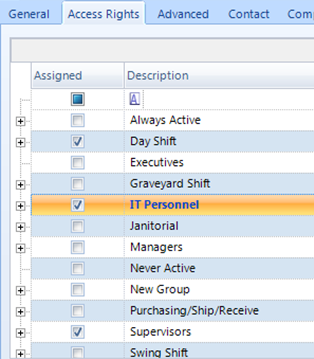
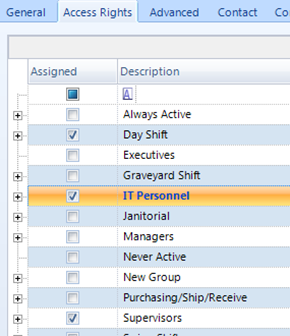
- Click on the access rights tab and select the access group/ or groups you wish to automatically assign to a block of cardholders. Then save.
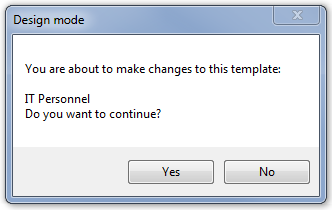
- When you save the settings you will see a message stating you are about to make changes to the selected cardholder template. Click Yes to commit the settings.
- When you save the settings you will see a message stating you are about to make changes to the selected cardholder template. Click Yes to commit the settings.
- You can also create other default settings that will automatically be assigned to new block enrolled cards. For instance; Company Name, Company Address, Work Phone Number and various Advanced Settings.
- Click the Design Mode icon again to return to standard editing mode.
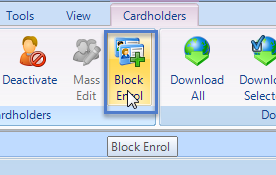
- Click the Block Enroll icon (again, you must have Advanced View enabled) otherwise this icon will be grayed-out.
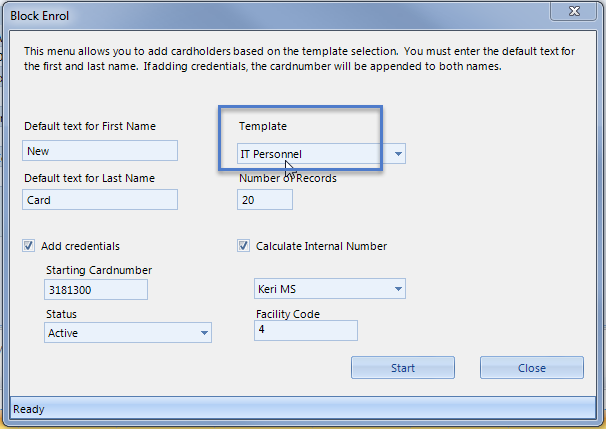
- When you work through the Block Enrollment process ensure you select the cardholder template that you recently created and edited.
- When Block Enroll is complete, open any of the newly created cardholder records.
- You will see that they all have the same settings (such as the same access group assignment).