Exporting and Importing Controller Settings
1.0 Introduction
Design Mode can be used to transfer configuration information from one controller to another. Controller settings such as; strike time, auto-unlock time schedule, reader type, filters and device type settings, DDA timings, door sense and RTE configurations, Anti-Passback settings, Device and Filter settings or video camera assignment can all be exported to a template file. That file can then be imported for use on other controllers of the same type with the same connected hardware. Again, this potentially can save a considerable amount of system programming time.
2.0 Controller Export and Import Setup Procedure
- Highlight an NXT-MSC controller in the hardware tree.
- Configure the controller with its desired settings; settings that you wish to be replicated on other controllers. Controller settings you might want to copy across could be; Reader Manufacture Model, Auto Unlock Time Schedule, door sense and RTE settings, Device Type and Filter assignments.
- Close the Hardware Setup screen.
- Close the Hardware Setup screen.
- Enable Design Mode (click the Design Mode icon
 ).
).
- Click Setup >> Hardware Setup >> All.
- Right-click the configured controller and select 'Save Template'.
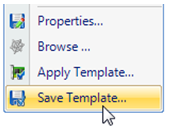
- The ExportLinkages subfolder in the DoorsNET directory is where you should save the controller template. It will automatically open up to this location.
- Give the template a name and click save.
- While still in Design Mode, right-click the controller that you wish to import the controller template to and select 'Apply Template'.
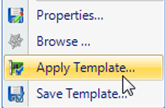
- The ExportedLinkages subfolder will again be opened automatically, so select the template that was recently saved, then click open.
- You will see a notification message similar to the following:
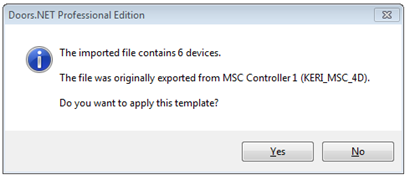
Note: You must ensure that any 4x4 or GIOX modules have also been added to the same bus(es) of the un-configured controller BEFORE applying the template. Otherwise an error will occur and the template settings will not be copied across.
- This example states the imported file contains 6 'devices', these devices are; the controller, each of the reader buses and an NXT 4x4 module added to bus 1.
- Click Yes to apply the template to the un-configured controller.
- You should see one more notification window providing you with a general indication of what controller settings have been changed.
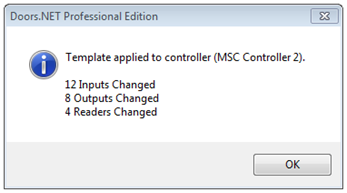
- Expand the properties of the second NXT-MSC controller and all its readers. You should notice that the settings exactly replicate what has been setup on the first controller.
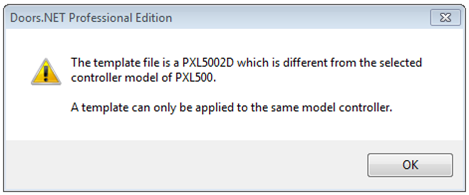
Note: This feature is not just limited to NXT-MSC controllers. Controller settings can also be exported and imported between standard NXT and PXL controllers, however, the connected hardware must match. You cannot import PXL5002D settings from a PXL500, or NXT2D settings to an NXT-4D. The hardware configuration must match exactly; otherwise you will see the following example notification and the import will not proceed.