Design Mode & Custom LED Modes
1.0 Introduction
When using Mercury and NXT Mercury-Powered controllers there are three available default LED modes defined in the software that control how the reader’s LEDs behave when the various modes are set to the readers. Examples of these modes are; Unlocked, Lockdown, Lockout, PIN only, Card + PIN, Access Denied, Access Granted, Locked, etc. By default, all readers connected to Mercury and NXT Mercury-Powered controllers are set to use LED Mode 1. You can use the Design Mode feature to edit any one of the default LED modes.
2.0 Setup Custom LED Modes
- Login to the software and click the Design Mode icon
 .
.
- Click Setup >> Hardware Setup.
- Double-click an NXT-MSC controller in the hardware tree.
- You will see LED Modes node located directly beneath it.
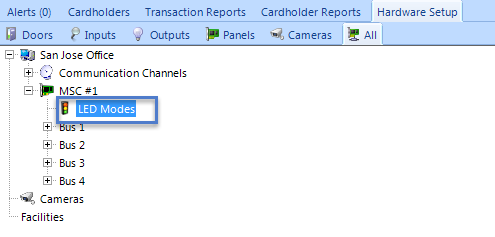
- Highlight LED Modes and from the ribbon bar click Add LED icon.
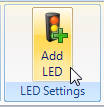
- An Undefined LED Mode entry will appear in the hardware tree.
- Highlight the new LED Mode and the properties will appear on the right.
- From the properties, select one of the default LED Modes (i.e Mode 1). LED is the best mode to edit because by default all readers on the system are assigned this mode. plus it contains all the most commonly used LED behavior for events such as: Access Granted, Access Denied, Door Forced, RTE, Lockout etc.
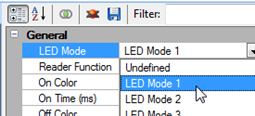
- From the Reader Function, select a specific reader mode (such as Card + PIN).
- Using the On Color, On Time and Off Color options, decide how you wish the LED to behave during Card + PIN mode.
- The following settings will result in the reader LED alternately flashing between red and green when in Card + PIN mode.
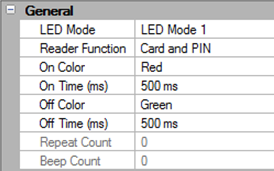
- Save these settings, then highlight a reader in the hardware tree.
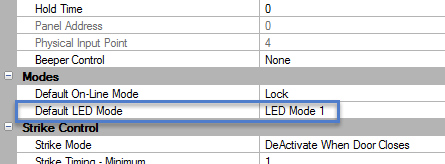
- Verify that the reader is set to the default LED Mode of 'Mode 1' - You will need to be in Advanced View to see this setting.
- Click the Design Mode icon again to return to the standard mode.