Simulate Credential
1.0 Introduction
Design Mode also gives you the ability to simulate the presentation of a credential at a reader. This is useful for verifying updating of the controller network and for checking access rights for a cardholder without physically having their assigned credential.
2.0 Enable Design Mode
- From within Doors.NET, click the Design Mode icon
 .
.
- You will see the text 'Design Mode' in the title bar.
- Design Mode is now enabled.
3.0 Open the Simulate Credentials Window
- Go to the Doors tab.
- Right-click on the door that you wish to simulate a card read.
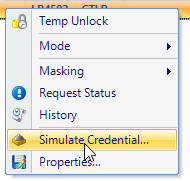
- Select Simulate Credential...
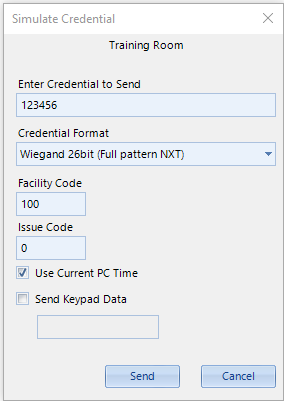
- The Simulate Credential dialogue box will appear.
4.0 Enter the Simulated Credential Details
- Enter Credential to send - enter a numerical value for a credential. This is the number printed on the card.
- Select a Credential - Select a format from the Credential Format drop-down list.
- Facility Code - Enter a facility code (if the credential is MS or Wiegand) -
Note: NXT credentials do not require a facility code.
- Send Keypad Data - Check this option if you wish to simulate entering a PIN rather than a credential.
Generate the Simulated Credential
- On the Simulate Credentials dialogue box, click the SEND button.
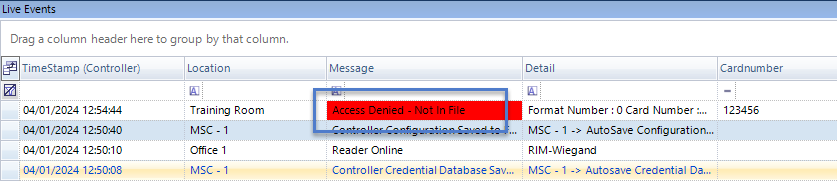
- If the credential does not exist in the database you will see an access denied event in live events.
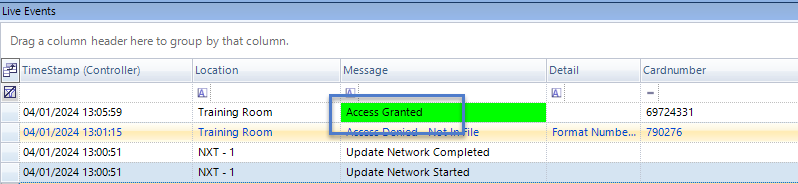
- If the credential DOES exist in the database, you will see an access granted event
IMPORTANT NOTE: If access is granted the door WILL unlock as though the card was actually being presented to the reader.